How to Identify Installed Version and Release in QuickBooks Desktop?
You want to upgrade QuickBooks Desktop, but you don't have the product and license numbers you got when you bought it. There's no need to be concerned because this post offers various strategies that make it simple for you to locate your QuickBooks desktop product and license numbers. Then, you can go for clean installation of your QuickBooks without worrying about the misplacing of your license and product keys.
You can find QuickBooks product details, including your product number, license number, version, and release using all the available methods contained in this article.
Approaches for finding QuickBooks Product and license numbers, version
and release
Follow the different approaches below to look for your QuickBooks
product and license keys.
Approach 1: In the Product
Information Window of QuickBooks
Finding your product and license numbers with this method is
simple and hassle-free. All you have to do is adhere to the straightforward but
helpful instructions below:
•
In the beginning, you should launch the
QuickBooks program.
•
You need to press F2 once the software gets launched.
•
The window titled Product Information will show up on the screen.

•
It must include both the license number and the
product number.
•
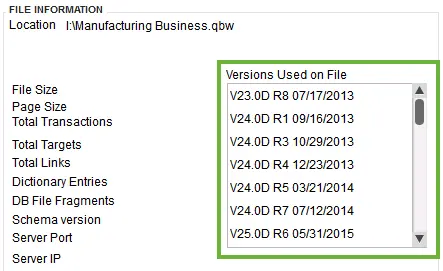
In this box, you can also view the release and
version numbers for QuickBooks.
•
Carefully take note of every detail. Once you're
through, you can move on to the re-installation procedure.
Approach 2: Using Manage Your
Account Option
The Manage your Account option also gives you access to
information about your products. Proceed as follows:
•
Launch QB Desktop to begin with and then select the
Company tab.
•
You now need to visit My Company.
•
Then, select Manage Your Account.
•
You may see all the QB-related product
information, including the Product number, License number, Version, and QuickBooks
release, in the screen that appears.
Approach 3: Via the Confirmation E-Mail
To purchase this software, either visit the official website or a shop. If the first option is selected, the QuickBooks License and Product Numbers for the Desktop edition can be obtained in the email that confirms the purchase.
Approach 4: Through the Registry
Use the registry to find your product's details by following
these steps:
•
Launch the QuickBooks Desktop program.
•
Hit on the F2
key.
•
You then need to press the F3 key when the Product
registration window appears.
•
Afterward, tap on Tech Help.
•
Herein, select Open File.
•
From all the files, select the one with the name
QBRegistration.dat.
•
You can choose to the file in Notepad. After opting for Open with, the notepad can be seen in
the List of Programs. Choose it and then hit on Ok.
•
Next, simultaneously press the Ctrl + F keys and enter License Number in the Search field.
•
Select Find,
then wait till the results show up.
•
The registration code or number should be
visible in the highlighted area.
•
Your QuickBooks Desktop Product Number will then
be provided.
Approach 5: Looking for the License
and Product keys Online
•
Visit the Intuit
website and attempt logging in with
the username and password you chose when you first registered for
QuickBooks.
• If your login credentials are valid, you'll be able to access your QuickBooks license number and product number.
How to find the license and product keys in Basic and Enhanced Payroll
Versions of QuickBooks?
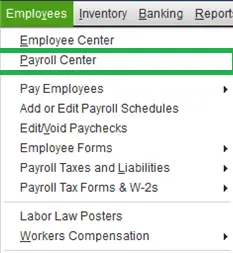
• Once the QuickBooks is open, click on Employees.
• Then, visit the Payroll Center.
• Click on the Payroll option.
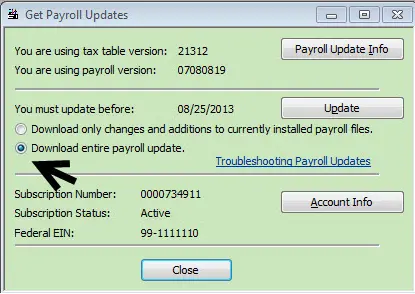
• Here, the Product and License Numbers must be provided.
Read the complete guide here: How to Verify QuickBooks Desktop Version Before Updating?


Comments
Post a Comment